Essential Color Management Settings 2026
About this guide
Version 2.0. Created using Octane 2026.3.
This guide is meant to distill color management to the barest essentials to give a set of baseline settings so colors match across Cinema 4D and Octane. It's not exhaustive (there are other guides in this series that are), but it should serve as a good starting point for most workflows.
This guide is also available in 📄 PDF format here
Part I: Recommendations|Recommendations
Author's note: "Tone Mapping" is a problematic term, but it's become a standard most people recognize (and it's used in Octane), so it's going to be used here when we're talking about reducing working color space data to display color space data.
Aligning C4D and Octane
C4D Project Settings (Ctrl-D / Cmd-D)
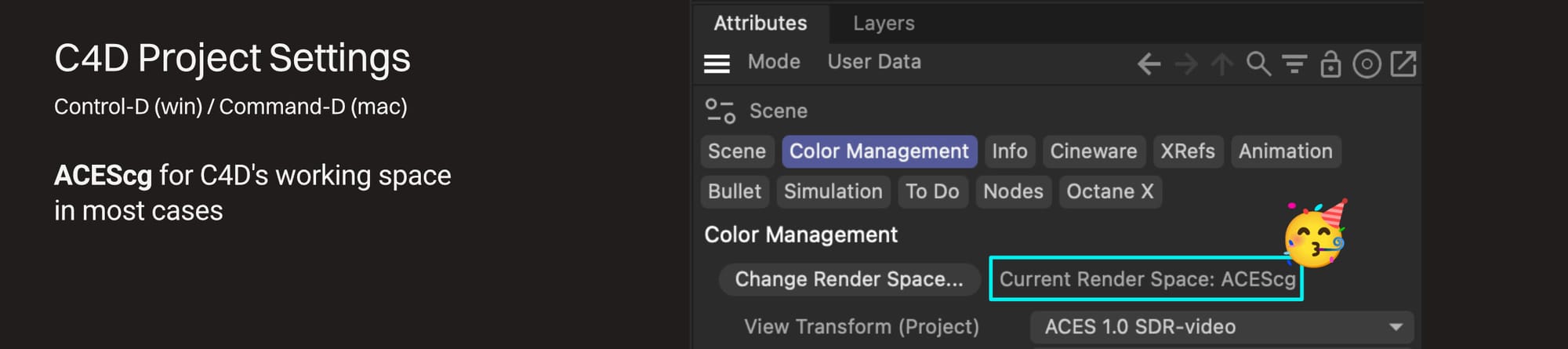 Leave C4D's working color space (Maxon calls it "Render Space") at ACEScg unless there's a very good reason to change it. This does not mess with our colors (that's ACES Tone Mapping, covered later), it just affects the data C4D is passing to Octane.
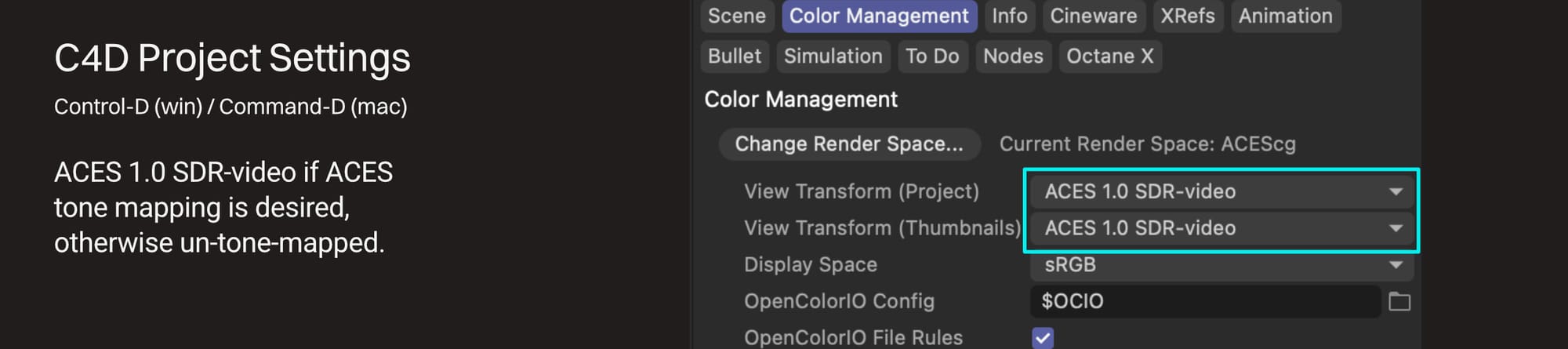 Change C4D's View Transforms (set them both to the same thing) to reflect whatever transform / tone mapping is going to be used in the final output. See Part II for more on this.
Octane Imager Settings
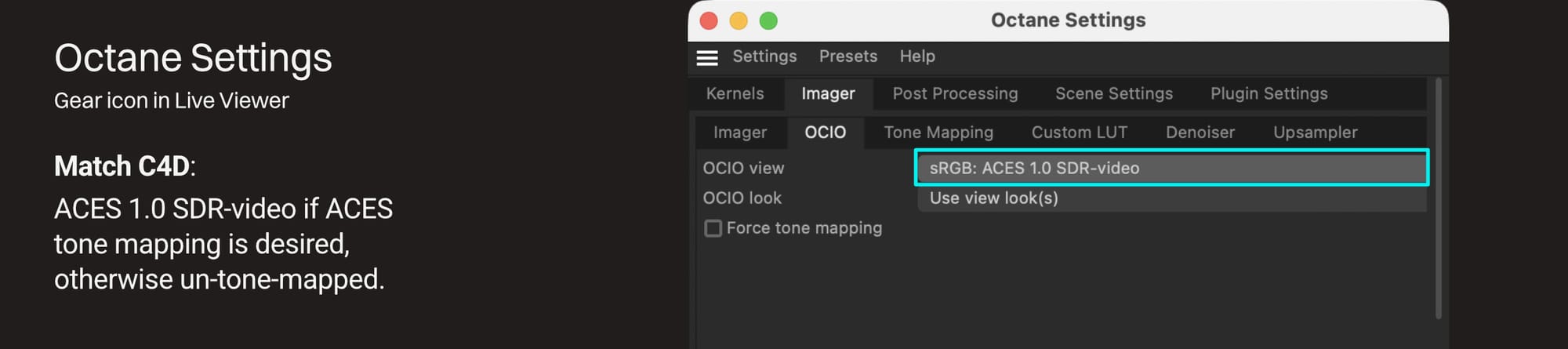 As of the 2026 1.9 plugin, use the OCIO tab to set the transform / tone mapping in the Live Viewer and render instead of the "ACES Tone Mapping" checkbox in the Tone Mapping tab.
This pulls OCIO information from the Scene Settings tab which defaults to using Cinema 4D's OCIO Config file (which is what we want). This warrants a whole other guide, just know that it's set up for success in C4D by default, so it's just up to us to choose which view we want.
The OCIO view should match C4D's View Transform (Project) settings, especially if we're planning on using Render to Picture Viewer instead of exporting directly from Octane, otherwise what we see in the Live Viewer won't match what renders.
The Octane Camera tag has an override switch for these settings in the tag's Imager tab. This makes it possible to have multiple cameras with multiple looks.
Note: The "none (sRGB)" and "un-tone-mapped" options are functionally the same.
Working in Octane
Octane Image Texture Node Settings
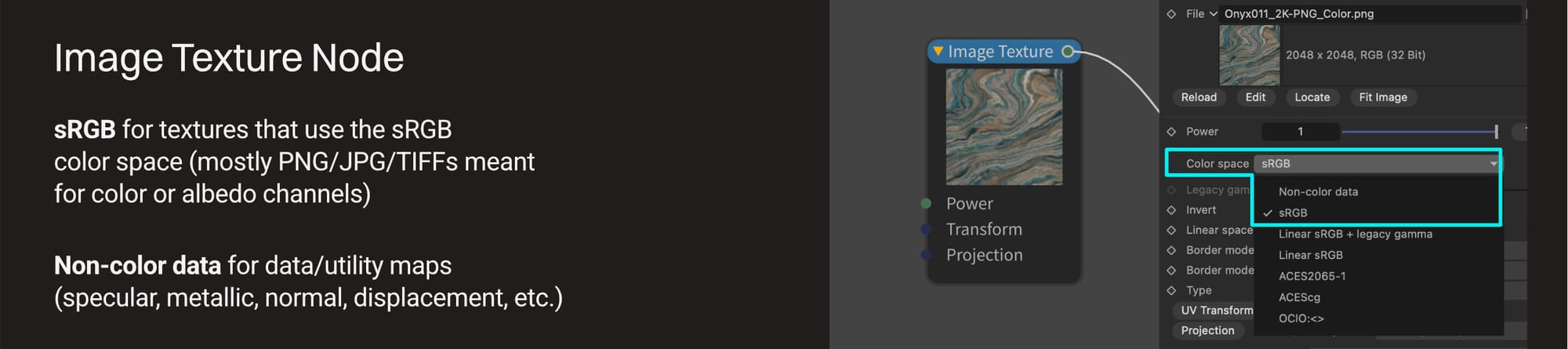 This needs to be set to the color space the actual image file is using.
sRGB should be used when the image is in the sRGB color space and contains color data meant for the Color/Basecolor/Albedo channel. This is the default Color Space for PNG / JPG / TIFF files, and most of the time that's what we're after for this type of texture.
Non-color data should be used when the image was created to be used as a data/utility map. These are usually found as parts of texture sets and are the images that go into the specular, metallic, normal, displacement, and other channels.
Octane Live Viewer
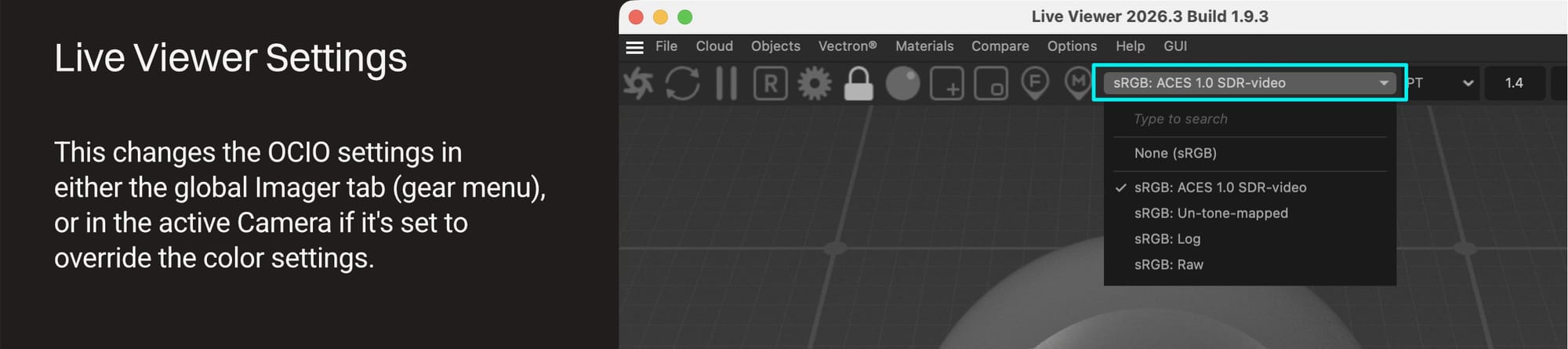 This is the same control as the OCIO view dropdown in either the Octane Render Settings (gear menu) OR the active camera if an OCIO override is enabled.
Important: This dropdown will change the setting, so if we're auditioning looks, we need to make sure it lands on whichever the final desired look is.
Exporting Renders
Exporting from C4D
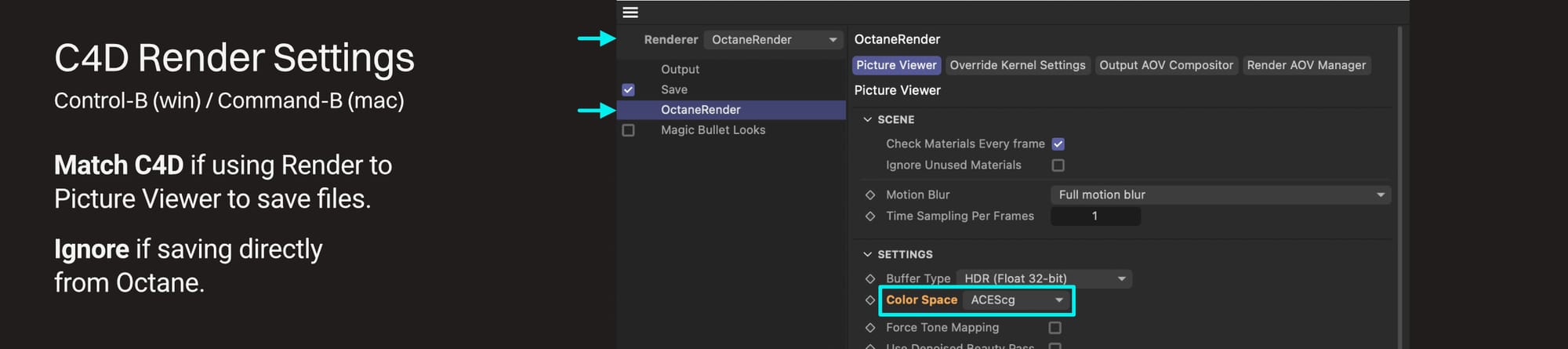 This is only relevant if we're using C4D's Render to Picture Viewer command to export images instead of exporting directly from Octane.
Important: The Color Space setting in C4D's Render Settings (Ctrl-B / Cmd-B) in OctaneRender>Picture Viewer must be set to the same color space as C4D's Render space (ACEScg by default) in the prior step or the colors will be incorrect.
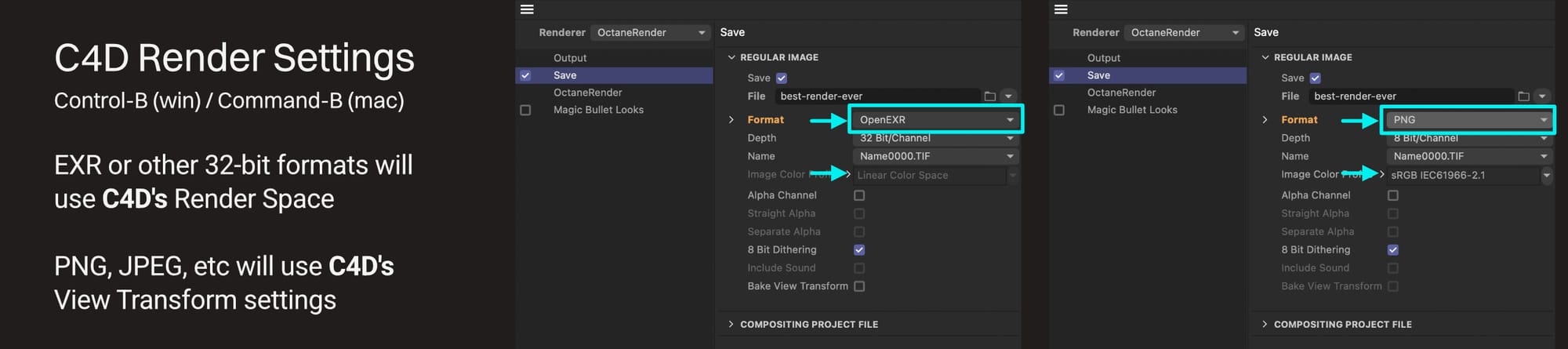 When we set C4D up to save, it will pull the color space information from the Project Settings (Ctrl-D / Cmd-D)
- If we're exporting EXRs or other 32-bit file types like TIFF, the Image Color Profile field will change to Linear Color Space (which we can't change). It will encode the files using the working color space that we set in Render Space in the Project Settings (ACEScg if you're following this guide's recommendations, but change it if your post app wants something else).
- If we're exporting PNG, JPEG, or other 8- or 16-bit file types, then it defaults to sRGB. It will pull the transform / tone mapping from C4D's View Transform (Project) settings in the Project Settings. This can be overridden here if need be.
Bonus tip: After hitting Render to Picture Viewer, make sure "Monitor Color Space" is checked in the Picture Viewer's View Transform dropdown in the upper right, otherwise what displays in the Picture Viewer won't look correct (doesn't affect the actual render).
Exporting directly from Octane
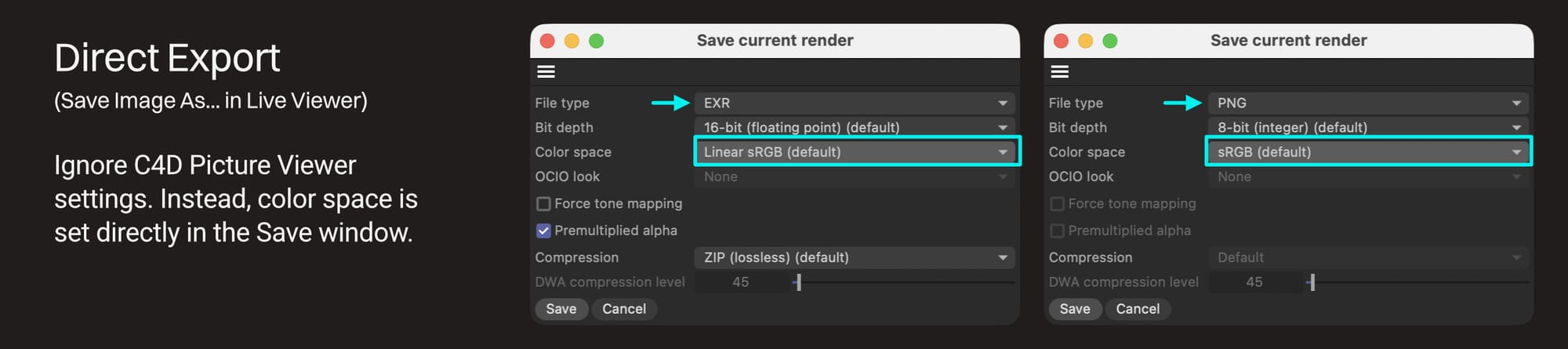 If Octane is being used to output files directly (Live Viewer>Save Image As or Save Image Sequence as...):
- Ignore the Picture Viewer tab in the C4D Render Settings - we're not passing data to C4D, so this is irrelevant
- If EXR is the target, set the color space here to Linear sRGB or ACEScg (or whatever the post app is expecting)
- If PNG or JPEG is the target, leave the Color space at sRGB (default) - it will pick up the transform / tone mapping from the imager settings
Part II: Whys and Wherefores|Extra Info
C4D's working color space (Render Space)
The Render Space in the Project Settings (Ctrl-D / Cmd-D > Color Management tab) is how C4D manages color internally. For our purposes, it affects the values C4D passes to Octane when we pick colors in a picker, and if we're using the Picture Viewer to render, it determines the color space that C4D is expecting when Octane sends data over (which is why Octane's Picture Viewer color space setting needs to match it).
C4D is generally just happier with ACEScg these days, and Octane will correctly interpret ACEScg values as of the 2026 1.8.4 version of the plugin, so it's best to leave it unless we have good reason to change it.
Octane's working color space
Internally, Octane works with spectral data, not an RGB working color space, so it converts whatever it's given to spectral data prior to render. It's how the engine operates (and part of why the renders are so beautiful), so it can't be changed.
Nothing else uses Octane's spectral data natively, so when passing values from Octane to any other app or process, Octane needs to convert from spectral data to standard RGB color space values. This is true both when sending to the Picture Viewer and when directly exporting files as EXR/TIF/PNG/JPEG/etc.
C4D's View Transforms
This affects how colors appear in the C4D UI (viewports), but also affects how they render when we're using C4D's pipeline (Render to Picture Viewer). We want to change both the Project and Thumbnail dropdowns to match whatever transform / tone mapping we're expecting in the Live Viewer.
- If our final output is going to be ACES tone mapped, we want these at ACES 1.0 SDR-video
- If we're doing straight sRGB, we want these to be un-tone-mapped
- For anything else (AgX, etc.) there's a more advanced workflow we need to contend with which is out of scope for this guide.
Image Texture Node
In order for Octane to convert image data to spectral data and keep the original intent of the texture, it needs to know which color space the image uses. This isn't reliably stored in the image file itself so Octane doesn't automatically pull it, which means we always need to double-check it.
Best case scenario is that these are all linear-encoded EXR or TIFF files. If we know that they were encoded using ACEScg or ACES2065-1, then we can set them to that. If we know (or are pretty sure) they are Linear sRGB, we can use Non-color data or Linear sRGB (which are functionally the same).
Typical scenario is that we get a PNG set. In this case, the color map is probably sRGB and should be set to that. The other maps are also PNG, but have been cajoled into being linearish, so they should be set to non-color data.
Worst case scenario is that we have a JPEG set. If we can, we should go back to the source and get PNG or EXR versions (the damage has already been done to JPEGs, there's no recovering the data needed for normal/displacement especially to work correctly). If not, we can still use JPEGs and set them up the same way we would have if we had PNGs, but just not set our expectations too high.
Octane's Imager Settings
Octane's internal working space is handled for us, but it needs to convert the spectral data to RGB values before it can send it off for further manipulation.
If we're exporting directly from Octane (via the Live Viewer), those color settings are handled in the export windows
- sRGB for PNG/JPEG and it will pull whatever transform / tone mapping settings we have set in the OCIO tab in the Octane Settings
- ACEScg, Linear sRGB, or some other working color space for EXR that our post app is expecting.
The real issue is when we're exporting using C4D (Render to Picture Viewer). In this case, Octane needs to send RGB values to C4D. C4D doesn't autodetect the color space, so it's up to us to figure out what it's expecting (found in the Render Space), and then match that in the C4D Render Settings > OctaneRender > Picture Viewer tab.
- If we followed the suggestion above, it should be changed from sRGB to ACEScg.
- If we're doing something else like Linear sRGB, we need to match this to whatever we chose for C4D.
Note: As of the Octane 2026 1.9 plugin, the "Tone Mapping" tab (and ACES Tone Mapping checkbox in it) can safely be ignored. The OCIO view dropdown in the OCIO tab is a better place to control the display transform (ACES tone mapping can be selected here and easily turned on/off in the Live Viewer window).
Wrap Up
Hopefully this is enough to get you started. There is a whole series of deeper dive color management guides available to help. [The Color Spaces Overview](OG036 Color Spaces Overview) is a good place to start for a deeper understanding of what any of this stuff actually means.
Author Notes
This guide originally appeared on www.contextualguides.com and https://help.otoy.com/hc/en-us/categories/201718003-OctaneRender-Support-Guides
The written guide may be distributed freely and can be used for personal or professional training, but not modified or sold. The assets distributed within this guide are either generated specifically for this guide and released as CC0, or sourced from CC0 sites unless otherwise noted and attributed.
© 2026 Scott Benson, All rights reserved.