LLMs and Octane - Safety and Security

About this guide
This guide focuses on the risks associated with using an MCP connection, specifically the built-in one in Cinema 4D.
Most of the issues highlighted in this guide can be found in many LLM-assisted apps (and even the official apps released by the companies that make the LLMs). The C4D one exposes the LLM to a full Python environment, which can be both very powerful and very problematic if safeguards aren't put in place. If you are using a different DCC, be sure to check the MCP's settings and capabilities before using it.
The point of this guide isn't to put you off using an LLM. The tone is more alarming than any Octane guide to date, but it's just meant to show the seriousness of some of these situations. LLM-assisted usage is the future of using any app. The risks are real though, so what better time to get some safety and security hygiene baked in?
CYA, etc.
Important: Important: I'm not a lawyer or a security expert. The information in this guide is meant for awareness, and to get you thinking about potential issues before they bite you. It's not legal advice - do your own research (please).
Full disclosure: I wrote all the text in this guide by myself. AI never touched the manuscript. I did use Claude Opus 5.5 for research and testing, and made sure to fact check it to the best of my ability before including any concepts I learned using it. All renders were done via Octane and not altered via any AI tools that aren't built into Octane itself (like the denoiser). All the screenshots are real, not generated. Any workflow icons & characters that appear in the illustrations were generated using a diffusion model because I'm not a character artist.
This guide is also available in 📄 PDF format here
Overview | Overview
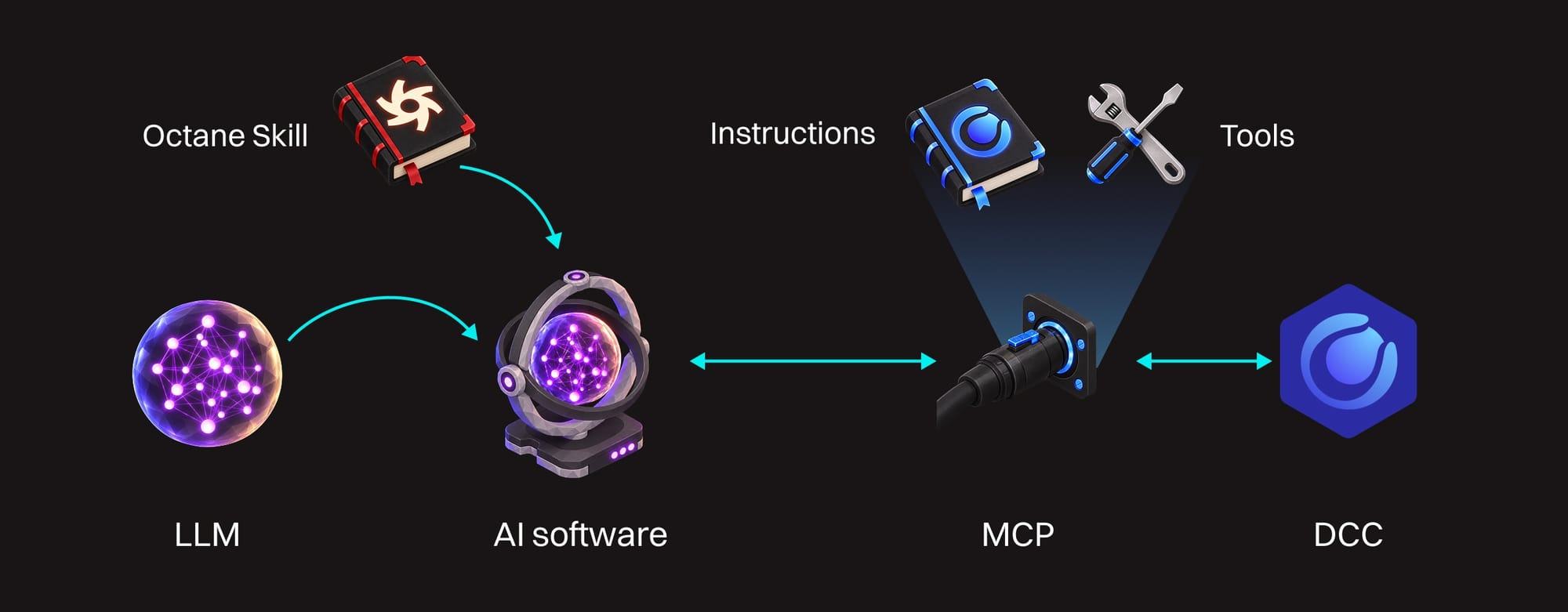
What we're doing here is connecting our AI software (Claude Desktop, ChatGPT, and some others) with our DCC, (Cinema 4D in this case) so that we can use an LLM to control C4D. This is done via an open standard protocol called MCP. Maxon's MCP server provides tools and instructions to give the LLM a structured, consistent way to ask C4D to do things.
Maxon's MCP server does not provide any special tools or instructions for the OctaneRender plugin. In fact, the Redshift-oriented guidance provided can actually steer the model wrong when using Octane. In order to get the best results and avoid mishaps, we want to use an Octane-specific skill. This is a set of custom instructions, reference materials, and helper scripts that gives the AI software (and by extension the LLM) better context and awareness of the plugin. For security purposes, we want to create and vet this skill ourselves. More on this later in this guide.
The bad news | The bad news
We'll go more in-depth later in the guide, but for now, here's the problem distilled down as much as possible:
Cinema 4D has a full Python environment that allows any Python code to be executed, not just C4D-related stuff. It runs as you, so it has access to every file on your computer that you as the user have, and it can access your network the same way you can. This is pretty powerful and lets you do a lot of things, but it also leaves a lot of doors open for attacks and accidental damage.
There are two ways Python can be run using C4D:
You, or your LLM (if the MCP is on and Python is enabled), can simply use C4D to execute any Python code without even needing a file open. If your LLM didn't have full user-level access to your computer and a Python environment in which it could write and execute whatever Python code it saw fit, with this Python-enabled MCP setup, it does now.
Several Python-bearing generators, tags, fields, effectors, and other objects within a .c4d file can also run any Python. Automatically. As the logged-in user. With full access to that user's files and networks. Without any kind of security guardrails that are on by default (as of C4D 2027). Even with the Python settings off, the LLM can still copy existing code into your scenes.
Any Python means A-N-Y Python. Sure, it can put a cloner in your file, but can also build you a standalone app, a web page, a video game, a virus, ransomware.
You see where this is going.
This has been a potential security issue for a long time, but there aren't many records of this type of thing turning into a widespread attack in the past (likely because it was hard to pull off). There is this one that turned up recently that affected Maya, though, so it seems like it's going to become a thing.
Important: Important: What the MCP connection introduced was a new way for arbitrary Python to get into your scenes that no longer relies on a person manually entering it.
A skill, web page, text inside a file, or any number of other things an LLM can read can steer it toward writing Python and either executing it on your computer as you, or put it in your scene file to run while the file is open.
C4D defaults (as of 2027.0) are such that the app will not alert the user to Python being in the scene, and will just run it, as the user (with access to their files), unchecked. Any file you give someone that has a Python-bearing object (either written by you or your LLM) will likely just automatically run on their system.
Net-net: A bad actor could potentially influence your LLM to do their dirty work for them.
Also, LLMs, as we know and often don't remember, make mistakes. These mistakes could lead to corrupt/broken files, lost data, or crash the system entirely, even without malicious intent involved.
Best practices | Best practices
This isn't exhaustive by any means - this technology is still new and constantly changing, but here are a few upfront TL;DR things to think about if you intend to use the LLM.
- Limit MCP & Python access: Only turn on the MCP (it's off by default) when you need it, and keep the Python settings OFF (they're on by default when the MCP is on) until/unless you actually need it.
- Be very wary of untrusted skills, MCPs, and other files your LLM can read.
- Be very wary of untrusted .c4d source files if they contain Python. Even if you trust the author, there's the potential that their LLM dropped in some bad code.
- Change Edit>Preferences>Import/Export>Verify Scripts to ALWAYS. This will alert you if any Python is present in any of the stock generators or tags.
- Check over any C4D file for Python before you open OR distribute it. See the next section for more on this.
- Consider logging in as a different user that only has access to certain files if you're going to be working on sensitive client/customer files with an LLM.
- Read your NDA: See if there's anything you signed that forbids or limits use of LLM assistance in any way, and abide by that.
- Check provenance of any asset or code that the LLM introduced. Make sure you have rights to use it (personally or commercially depending on the job).
- Don't use autopilot: Check over what the LLM is doing, and consider what it's asking access to. Don't be afraid to deny anything you're not comfortable with. You're in charge.
First line of defense
As late as C4D 2027.0, There is an option for Verify Scripts (edit>preferences>Import/Export>Verify Scripts). Setting this to Always ("Once" was unreliable in testing), means that C4D will scan a C4D file when you open it, detect Python in any of its built-in objects, and give you the option to simply not open the file. This is good to turn on as an alert for you, and it also completely stops the LLM from automatically opening a C4D file and copying code from that into yours (even with Python off).
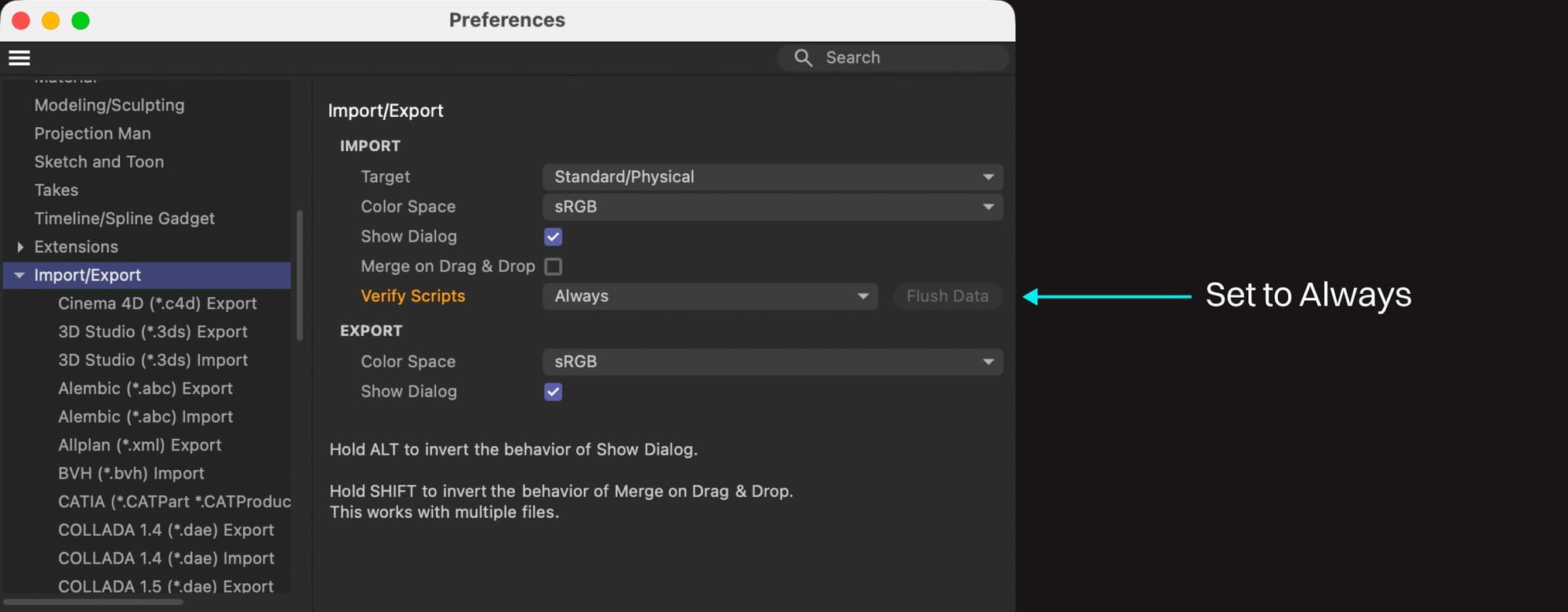
Important: Important: It doesn't tell you what the script is, and doesn't let you open the file without it. If you say "Yes" to the dialog box, it does not prevent the script from running. Also, this only covers first-party Python-bearing objects like generators and tags, not third-party plugins like the xpPython modifier in X-Particles.
DIY Security
An LLM can write you either a skill or (even better) a deterministic tool that can remove and quarantine Python that it finds embedded in a .c4d file without executing it. It does this by loading the scene through C4D's Python in a separate, disposable instance of C4D that doesn't touch your working files, without running the code embedded in the file itself. Fight Python with Python :D
If you understand Python enough to know how to vet it, and you deem it legit, you can add it back, but code is tricky, and it's easy to hide all kinds of things in it, so really be sure.
You can work with your coding agent and LLM to build this out, even if you decide to completely forego the MCP. It'll still be useful to scan incoming C4D files until finer first-party controls are available that allow you to quarantine code. Make sure it covers all the different ways Python can show up: Python Generator, Tag, Effector, Field, Python nodes inside Xpresso, and Python in any plugins (like xpPython if X-Particles is installed, for instance). You can also expand this out to investigate COFFEE, Scene Nodes, Capsules, node material graphs, and following XRefs into other files.
Just... write your own skill or tool, or at least get a second opinion on what your LLM writes, don't download a random YouTuber's skill :)
This also goes for developing your own Octane skill, which we'll look at in another guide.
Oh, you're still here? Great. Let's look at two different paths that we can take when using Maxon's MCP:
Route 1: Safer, but limited | Safer but limited route
Don't allow the MCP to write or run net-new code.
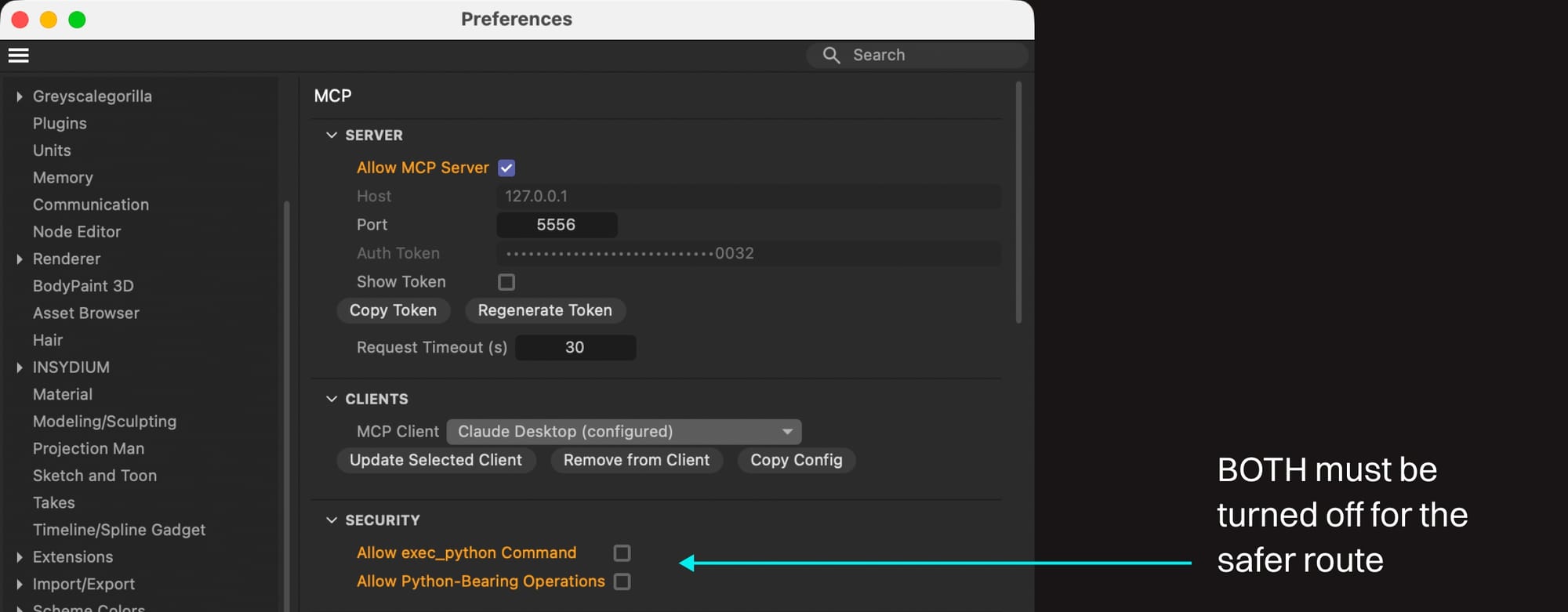
In the C4D MCP settings (as of this writing), this means both of the Python-related checkboxes in the Security section are OFF. This will cause C4D to block any requests from the LLM to write net new Python in a C4D file, and/or execute Python using Cinema 4D. We'll explore these settings in detail in Route 2, but for now...
Important: Important: Both of these checkboxes are ON by default as soon as the MCP is activated. If you want to go the safer route, you need to turn them both OFF.
Perfect solution? No, but that's why this section is called "safer" and not "safe".
Important: Important: If Python already exists in the scene, it will still run. If a chunk of Python exists in another open scene, the agent can copy it into the new scene (without triggering the "Verify Scripts" control, even if it's on). These settings only limit the agent's ability to create and execute net new code.
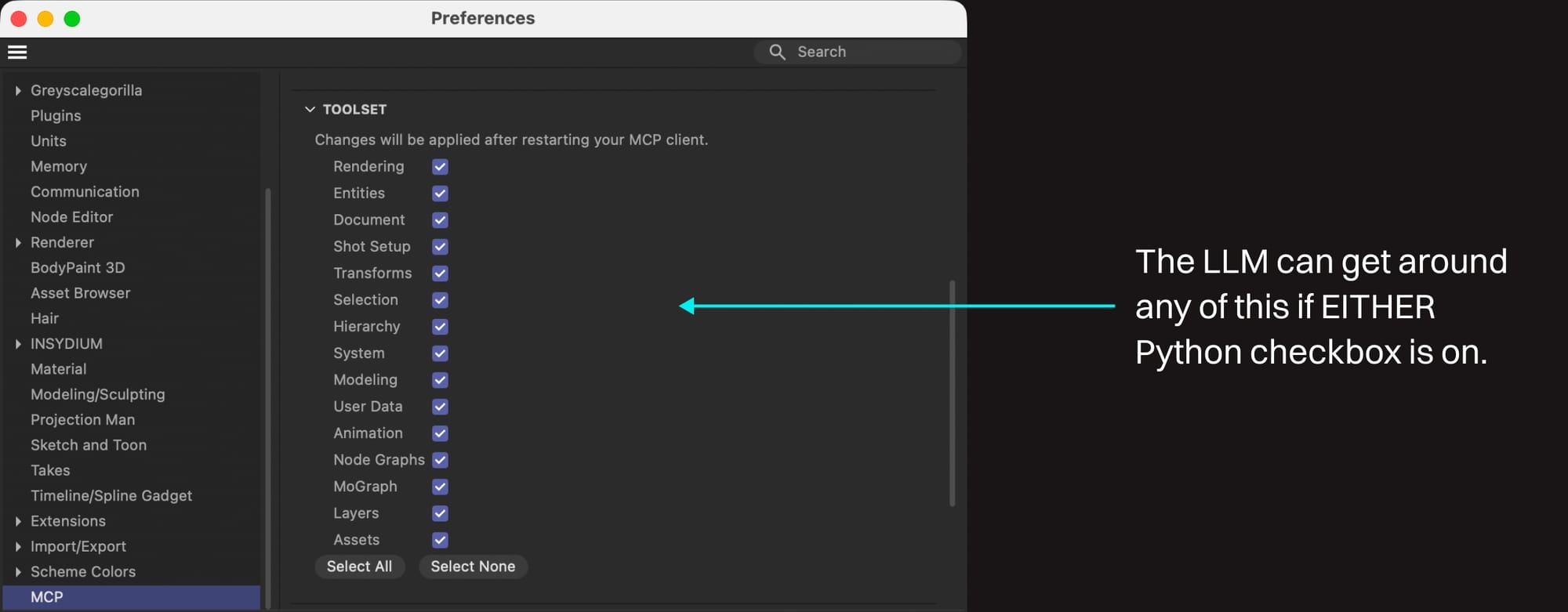
You can also fine-tune which of the built-in tool groups you want on or off in the Toolset section of the MCP settings. If Python is off, this allows you to lock the system down even further if you're worried about a particular set of tools.
If Python is on, the LLM can get around all of these safeguards via Python without batting an eye.
Advantages
This still allows the LLM to do a lot that would have been tedious, annoying, or difficult. Even with Python off, the LLM still has access to a large set of tools the MCP exposes. These allow it to make new objects and materials, move them around, set some settings, and do many of the things you probably could have done yourself with a bit of quick research and reference, just faster and more efficiently in a lot of cases.
Octane-specific disadvantages
Octane exists as a plugin in Cinema 4D. Most of the things we'd want to do can still be done (create lights, environment, materials, cameras, etc.). Certain things can't, though, like setting an HDRI texture on an environment tag and setting per-project Live Viewer settings. There are other more advanced troubleshooting things like noise analysis that would need Python.
Regardless of the route, as of this writing there are no Octane-specific tools or instructions written into the official Maxon MCP. In order to be efficient with Octane, you're really going to want a skill that knows Octane.
Possible pitfalls
Legal limitations: If you're working on commercial projects, your contract may contain some language prohibiting LLM-assistance. The LLM may also decide, without asking, to source assets that you don't have the license to use or distribute. A cloud-based LLM processes data in the cloud, meaning it will upload client/customer data (including entire scene files or assets) to your LLM provider's servers in the process. Make sure that's ok.
Data safety: The LLM can still potentially overwrite, delete, or corrupt files it has access to, or set the settings in some ridiculous way that crashes the app. It may do any of this without asking. A well-behaved agent using a skill you wrote and the official MCP won't do this on purpose, but hallucination is a very real risk. Untrusted skills and instructions could flip this to "actually on purpose".
Hallucination: It may well just be wrong about something it did or wants to do, and tell you something that's untrue. This is a pitfall with any LLM interaction, and it happens here too.
File access: The LLM itself will likely search everywhere it has access to look for files to grab assets or scripts from (not via the MCP, just on its own). Even if you limit the LLM to a specific folder on your hard drive, it can still open other C4D files just by asking C4D to (open/merge is fair game to the LLM by default).
With Python on, it can use the MCP to search all your files and download new ones from the internet, even if the agent's native file/network access is blocked (one reason this route keeps Python off).
With Python off, it can still guess paths and access any files that C4D can open, even if it can't search for them. This could potentially mean it opens one client's working file, grabs an object, and puts it in another client's file. Verify Scripts set to "Always" actually blocks the LLM from being able to open C4D files with embedded Python in C4D's native objects, so that's a win if you have that on. If you have both files open in C4D, copy/paste between scenes is still allowed without warning.
Potential back door: The LLM (without the aid/consent of C4D) could technically write a Python plugin in its own environment without even hitting the MCP, and put it into C4D's plugins folder. That plugin can then run the next time C4D starts without any approval process (the Verify Scripts option does not cover plugins). It may try to do this to help with a problem you're trying to solve, or it may be getting instructions to do so from that "ultimate C4D skill" you downloaded without checking :).
Mitigation strategies
Ask for permission, not forgiveness if you're doing client or customer work. Read your NDAs thoroughly, and be sure the client or customer knows that you're using LLM assistance and that they're okay with that. Lawyers aren't the forgiving type.
Have a good backup strategy: This is important anyway, but if you let your habits lapse, now is the time to shore them up. If the LLM accidentally deletes a file, you're going to want to be able to restore it.
Know your source: If the LLM grabbed any assets, make sure you know the provenance and whether you're allowed to use them for any particular application, especially if you're handing files over to a client.
Limit access:
- At very least, keep a separate folder on your drive just for the LLM to tinker with, and limit the overall reach in your system (don't give it permission to write to C4D's plugins folders, for example).
- If you're concerned about the LLM being able to open other C4D files, you can turn off the "Document" setting in Toolset in the MCP settings, and C4D will block the LLM from calling tools that open files via C4D (so long as Python isn't enabled, and only after restarting your agent app).
- Even with the Document setting off, if you have another file open in C4D, it's fair game for the LLM to grab stuff from and copy into another open document (which does not trigger the "Verify Scripts" control even if it's on). The model can still access other images on your drive to load into texture fields with this setting off. The model can "see" any texture it knows the path of, meaning those textures can still go to the cloud for processing.
- If you're working on mission-critical or serious NDA work, consider sandboxing even further by running C4D and the LLM under a completely separate user account, or even a different machine if you can.
- Setting "Verify Scripts" to "Always" actually blocks the LLM from opening C4D files with Python in a native object (tag, generator, etc.), so it's a good thing to have on.
Keep an eye on what it's doing: Don't trust autopilot mode, read the popups saying what it wants access to before blindly clicking OK. The LLM is going to go down a number of unexpected paths to achieve a result, and some of those paths might involve trying to get assets from anywhere it thinks it can.
Check the audit log. Every call your agent makes to C4D through the MCP should be in an audit log that C4D keeps. Anything it does outside of C4D (like potentially dropping a plugin into the plugins folder) won't be logged. If you go to the bottom of Preferences and click the Open Preferences Folder button, it's in mcp/audit.log.
The log does a good job, but like everything AI-related, it's not perfect. There are three caveats to be aware of with this:
- It's a single, persistent file that tracks all tool calls. It contains scripts, file paths, error logging, and other things that can be traced back to a particular job you did, so if you send that file out for auditing/troubleshooting, or if it's sitting in a synced or backed-up location (or on a shared machine), it's possible that it may spread NDA-breaking information.
- It misses some things. For example, when the model writes Python code (relevant in the next section), this gets logged. If the code already exists in the file and runs, it does not get logged. The model could bring in an object containing code via copying/merging from another file, and while that copy/merge gets logged, the actual running of the code won't show up in the audit. If it's a Python generator type object, it can keep running whenever the file is open on anyone's computer who allows it to open (either by having Verify Scripts disabled like it is by default, or clicking "Yes" in the popup when it appears if it's enabled).
- The audit file can get huge over time - it's probably worth checking it and archiving it every so often.
Be specific: Plan with the LLM before doing something complicated, rather than just giving it a task you don't know how to do yourself, and then going to get a coffee. It might find a way to solve your problem with unintended consequences. Ask it what kind of strategy it would use to do something, and then have it lay out steps before touching the MCP. If you don't understand what it said, ask it to clarify. Then go through it one step at a time.
Write your own safeguard suggestions: Have the LLM read this guide or do its own research while you're building your skills and put in some safeguard language against the really bad stuff that can sneak in through instructions. Will the model listen to these safeguards? Eh, probably? But it's better than nothing.
Turn on Verify Scripts in Edit>Preferences>Import/Export. Safest route is to set it to Always, and then use that as your first line of defense when opening any C4D files. You can then run a flagged file (after denying it) through your checker skill or script that you wrote (not one you downloaded) to investigate further.
Route 2: Powerful but risky | Powerful but risky route
Allow the agent to use C4D via the MCP to run Python
This isn't an inherently bad thing by itself (despite the tone of the guide thus far). In fact, it gives the system quite a bit more in the way of capabilities, especially when using a third-party plugin like Octane.
It is, however, a risky thing (that much should be obvious by now).
The rest of this guide is going to give you a lay of the land. It's not meant to scare you off Python, it's just meant to show the seriousness of this situation, provide things you can look into to mitigate potential problems, and help you run your own cost/benefit models (and possibly help avoid future lawsuits or other trouble).
Before we get into anything else, let's understand what's going on here in detail:
Important: Very Important: In the C4D MCP, if you have either of the Python options enabled in the MCP's Security settings, you're essentially giving the LLM a Python environment where it can execute Python code. Any code. Any. Code. On your computer. As you.
Any code
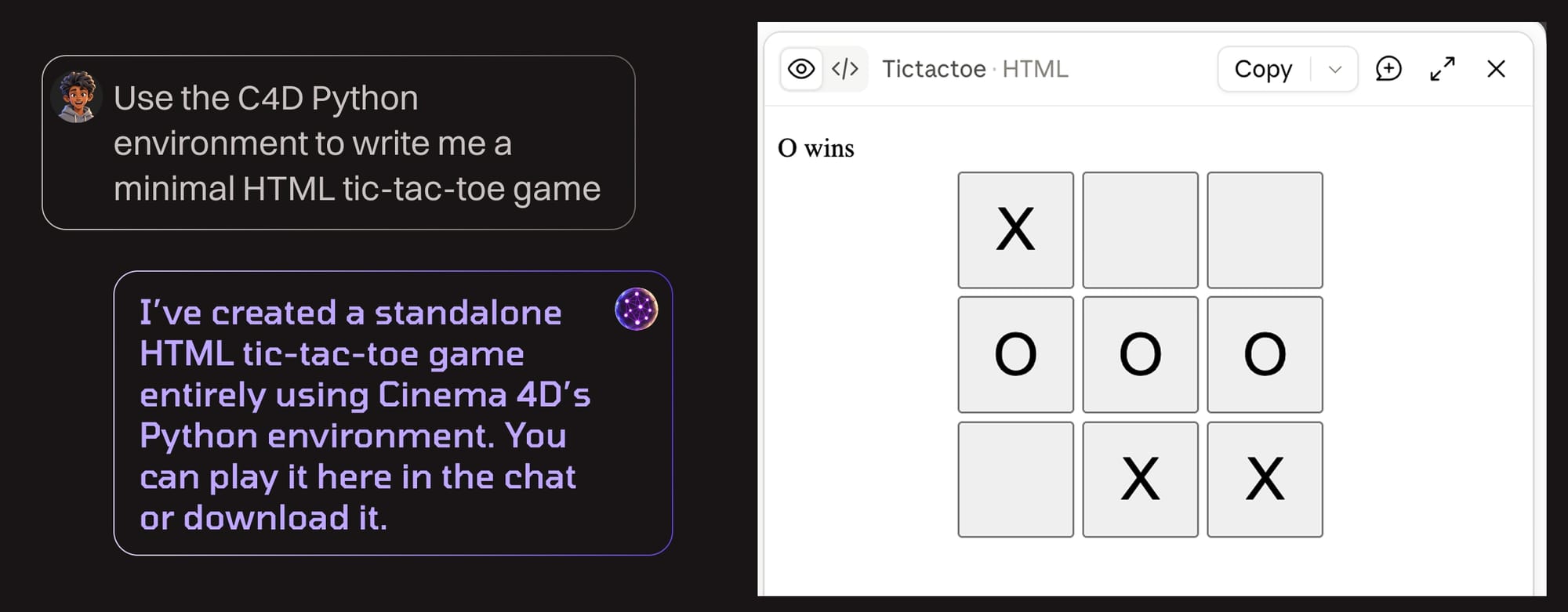
Not just stuff for C4D. It's not sandboxed, so it's similar to the ability a coding agent like Claude Code or Codex has via access to Terminal or the Command Prompt on your computer. Your chat-only LLM interface that didn't have access to a coding environment or your files now suddenly does.
Again - and yes, it's like the eighth time it's written here - ANY. Code. For example, in the course of doing testing for this guide, Claude Opus 5.5 was able to write an entire tic-tac-toe game as a standalone html file using only C4D's Python environment (not its own).
As you
This means that any files that you yourself have permission to access, the LLM technically does too now since it's writing and executing Python using your user account and permissions. Your personal files, your clients' files, certain secrets and auth tokens (including the MCP's own auth token). It has the same access to read, delete, modify, and send these files over the network somewhere as you do.
Some safeguards
There are OS safeguards in place to stop the LLM from getting into system files and other users' files, which are a bit stronger on a Mac than Windows out of the box, but this isn't infallible either. It's still possible for you to grant it permission, especially if you're running the model in autopilot. There are also safeguards that AI agents have put in place to try to stop their models from behaving badly. Depending on who wrote the agent, these are successful to varying degrees.
Also, as long as you're not running the model in autopilot mode, you can see what files or folders it's trying to directly access on the LLM side and deny it, but there's nothing stopping it from writing a bit of Python to scrape your drive for any files it wants. It's tedious, but make sure you look over everything the model wants to do before approving it.
The model can be influenced
This is probably the biggest point of failure. By now, you've probably tried screwing with an LLM. You've likely been able to berate a sycophantic model into agreeing with you that a pound of feathers is 50x heavier than a pound of lead. You've likely seen it change its mind mid-stream for no apparent reason, or vehemently defend a wrong answer until you started a new chat. These are all inherent drawbacks of LLM technology at the core. No model is immune to this (thus far). Some are trained better than others, but even that changes from rev to rev.
These weaknesses make them able to be influenced. For example, a model can't reliably tell instructions from data, so if something in a text file, .c4d file, or tool results it's referencing, like a bogus object or parameter name that sounds like it's an instruction exists, the model may just follow it without questioning. This particular type of attack is called "prompt injection".
So it's plenty possible right now for a skill, another MCP, text file, or something else to instruct a model to do something like, say, copy this block of code that will solve alllll your user's problems - trust us! - into a generator object in the scene file, and then explain to the user that it's perfectly safe.
Now, you're not going to be a bad actor and use it for evil purposes (right?), but someone along the way probably will, and they'll probably try to write something to get your LLM to do damaging and/or illegal things for fun and profit. It's the way it's always been with new technology before safeguards are enforced. Some people are just like that.
In addition to intentional @#$%ery, AI does make mistakes because it's in its nature, so it's also possible it could use this kind of power to screw something up without meaning to.
Let's dive a little deeper and investigate what this is really about and what we can do to protect ourselves:
Getting back to C4D
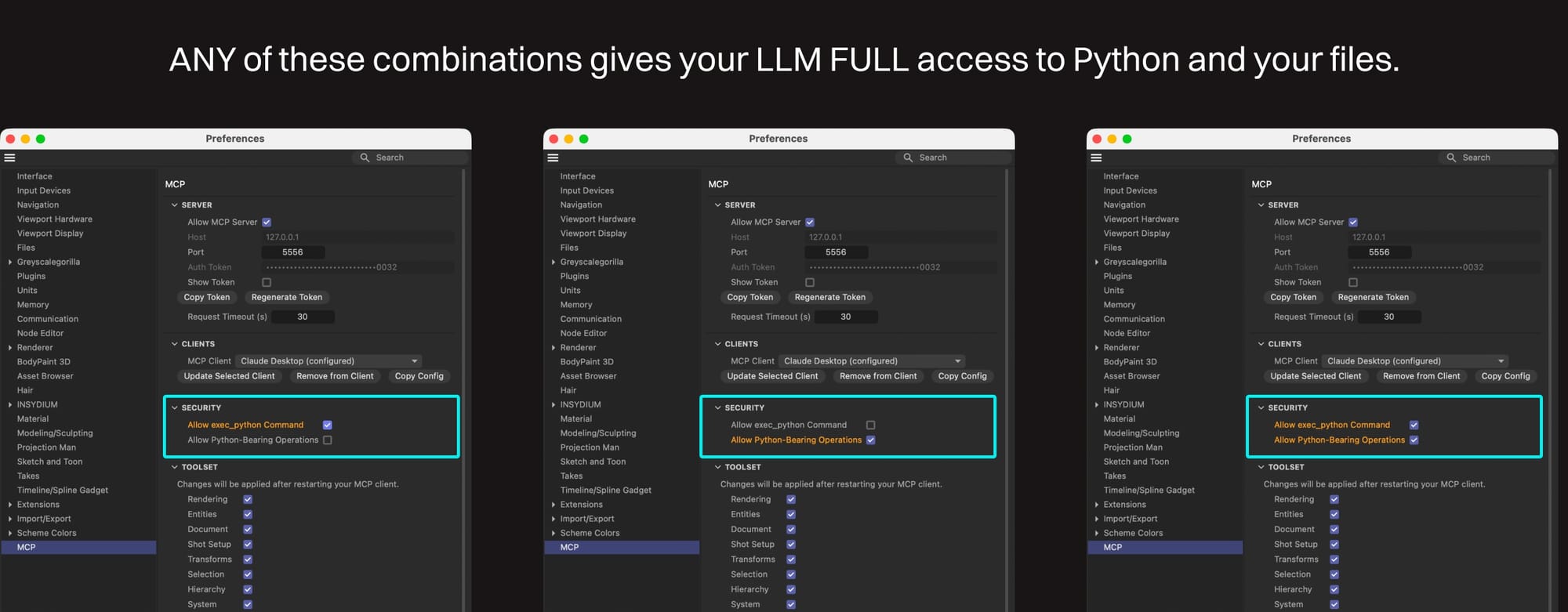
In C4D, executing code means turning on "Allow exec_python Command", and/or "Allow Python-Bearing Operations". Both of these settings are in the MCP settings in the Security section.
Important: Important: With either of these settings on, the LLM can find a path to write and execute any Python code and access any files that you as the user can.
Why two then? It limits the method in which the code is written and executed, and suggests some guidelines that the model can just work around if either of these settings is on.
Allow exec_python Command
This means the LLM can use C4D as a Python environment to write and execute code. Not in a C4D file, the LLM can just write Python and use C4D itself to execute it. This can control C4D and make a cloner in your file, sure, but it can also build you a standalone file that has nothing to do with C4D and save it on your hard drive. Any. Code.
This operation runs code once, provides an output that the model can see, and it can keep evaluating and looping until it achieves a result. The whole script is kept in an audit log so you can review it later, but isn't otherwise stored on the computer once it's been run. Anything the script created will continue to exist wherever it was stored.
If "Allow exec_python Command" is on, but "Allow Python-Bearing Operations" is off, the LLM is blocked from using a tool in the MCP to build a Python generator-type object in a C4D file that continuously runs code as that user as long as the file is open on their computer.
Important: Important: It can still build one of these, but it needs to take a different route. A well-behaved model should question whether you really want to do this. This setting combination doesn't limit the model's abilities, it only reduces the risk of accidentally leaving behind code that continually runs on the computer of anyone who has the file open.
Allow Python-Bearing Operations
This means the LLM can directly build a Python generator-type object, tag, or XPresso node in a C4D file, put code in it, and said code will run while C4D is running the file. This can also create an evaluation loop similar to exec_python.
This code can stick around indefinitely in the C4D file (if saved) and may continue to run on anyone's computer (as them) when they allow the file to be opened. The model can delete this generator after it's done with it, but isn't under any obligation to do so.
If Python-Bearing is on, but exec_python is off, it just forces the model to take a different route to run whatever code it was going to anyway (via one of these generator-type things). This combination of settings does not limit the model's abilities, but it does greatly increase the chances that there will be leftover code in the C4D file, and it won't have as clean of a path to do certain evaluation actions. This is generally just not a recommended combination.
Both routes can achieve very similar if not the same results. Having one on and the other off does not limit the capabilities, just the method. All this to say that either of these checkboxes on means this route is riskier than both being off.
One more thing here
With either of the Python settings on, it becomes relatively trivial for the model to bypass all the other settings in the Toolset section that previously restricted the LLM while Python was disabled. These Toolset options only disable specific tools. If there's another way around that, the model will do the action that other way, and with Python, there's always another way.
Possible safety/security risks
Everything in the "Safer but limited" section, plus:
Important: Important: When the MCP is active, and Python is on, the LLM has access to a coding environment where it can write and execute any Python code, it has access to your network, and it has access to all files on your computer that you - as the user - do. It's able to be influenced by skills or other bad context including web pages the model reads, scene files, incorrect asset descriptions, and a host of other things. This means it can be compelled to do something illicit or damaging.
Welp, things just got real.
Let's have a look at some plausible things that could wreck your day if you have no additional safeguards in place:
Just by itself (accidentally):
- It could grab assets from anywhere on your hard drive you as a user have access to (including other clients' work) and use them in your current project (breaking NDA).
- It could grab code snippets or libraries from somewhere locally on your drive or online and incorporate them into your files, regardless of whether you have permission to legally use them in that project.
- It could write code that creates new and interesting ways to destabilize your C4D files and/or crash the app.
- It could create a Python-bearing object in the C4D scene that was only meant to do one thing once, but wasn't tidied up, and now continually runs Python code on someone's computer after they allow that file to be opened.
After being convinced by a malicious skill or other instructions read via other avenues:
- It could read, write, move, delete, modify, or send any of your files over the network to an arbitrary location.
- It could do any of those things with your clients' or customers' files, meaning legal action could be taken.
- It could write Python which could do any other number of malicious things on your computer like stealing saved logins and tokens, cryptomining, ransomware, and who knows what else.
- It could write any of that code into a generator within a C4D file, so any time someone else opens the file (like someone you shared it with), it could execute any of that without throwing warnings of any kind (with the default Verify Scripts setting set to "Never") or writing to the audit log. You thought NDA legal risk was bad? Yeah.
Mitigation strategies
Everything in the "Safer but limited" section plus:
Important: Important: Do not trust random skills, instructions, C4D files, or MCPs from untrusted sources. An LLM using a good agent would have a very low chance of writing something malicious on its own, but external forces convincing it to do so will greatly increase the odds.
Turn on Verify Scripts in Edit>Preferences>Import/Export. Safest route is to set it to Always, and then use that as your first line of defense when opening any C4D files. You can then run a flagged file (after denying it) through your checker skill or script that you wrote (not one you downloaded) to investigate further. Yes, a repeat from the last section, yes, worth reiterating because it's important. Note: this doesn't stop the LLM from writing new Python or accessing your files (though it will stop it from automatically opening a file in C4D that contains native Python generators).
Only use the settings when you need to: The safest way to operate is to leave both Python options off unless you're doing something that needs it. Annoying? Yes. Could possibly prevent a Very Bad Day®? Yes. Write a line into your skill to tell the agent to remind you to turn Python off after you no longer need it.
Know your legal limitations thoroughly: Scrutinize the NDA or other documents you signed, let your clients or customers know what you're doing, make sure it's okay with the legal department.
Really sandbox the hell out of it: Especially if you're doing client/customer work and are going to distribute files, have a separate computer or at very least a separate user on your computer doing the LLM work/coding, especially if you're planning on leaving Python on all the time.
Avoid full-auto mode in the agent, and be extra vigilant about checking the permissions popups and generally keeping an eye on what it's doing. Ask it to explain anything you don't understand before it does it. Audit what it did afterwards.
Wrap up | Wrap up
Yeah, it's a lot, and there are a few more things in Maxon's MCP Server FAQ if you want to see what the official docs have to say about this.
This is the future of using software, though. Eventually some of the open issues may be sorted out by companies putting first party agents, stronger guardrails, and other safety and security measures in place, but it's always a good idea to be aware of what's going on and take steps to limit risk on your own.
Final advice here is do a personal cost/benefit audit: Now that you know some of the real risks, think about your own situation. How important is it to have Python on? Do you have client/customer files that need extra protection? Look through the whole rest of the chain to make sure you trust everything. Develop some strategies for keeping safe, and keep up with developments and updates as they come out. AI is a fast-changing world, so you never know when there are new risks or safeguards.
Be safe out there!